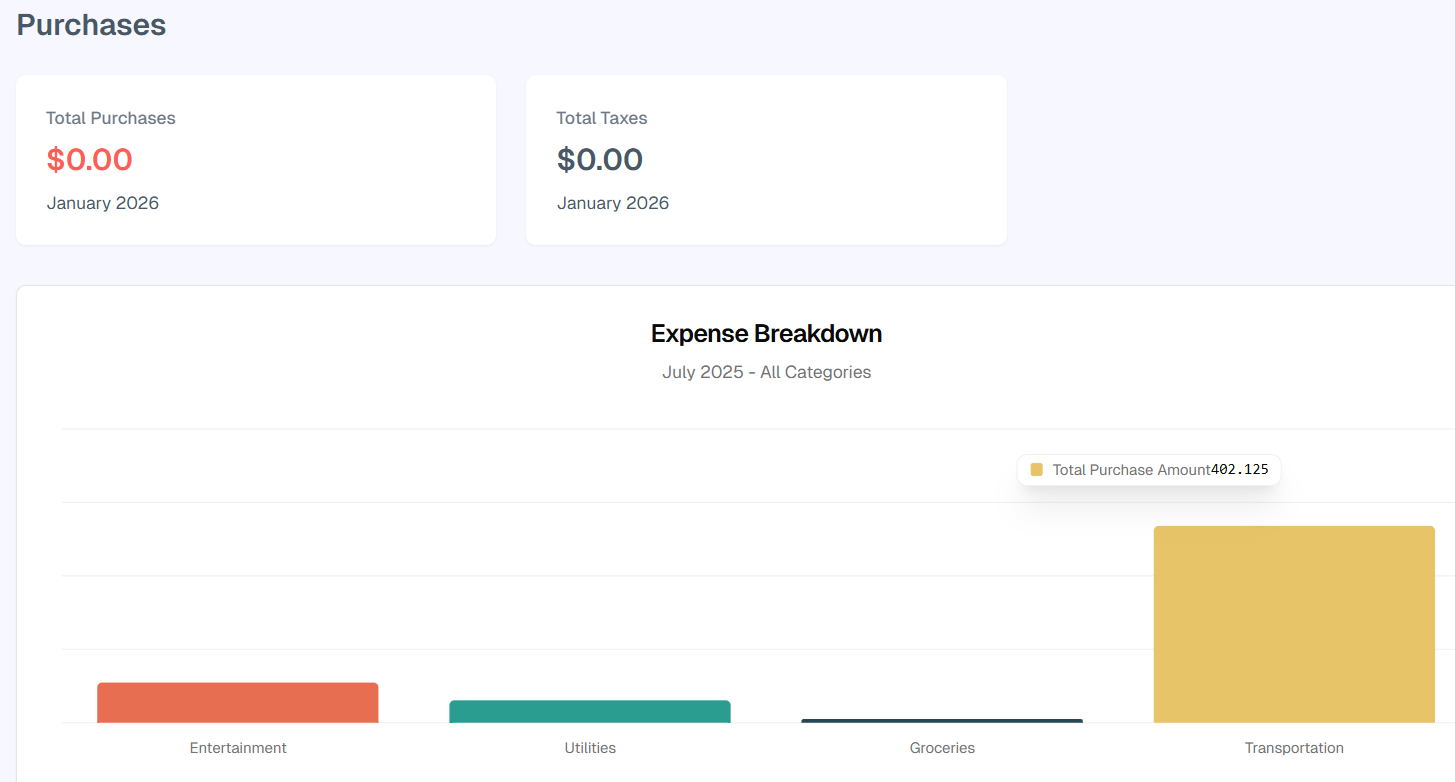
Building an AI-Powered Personal Finance Tracker
This project started from a Google Sheet my wife and I kept to track our budget, plan our savings and expenses, and maintain a detailed list of our purchases. We were trying to keep our spending in check. At first it worked great, but it quickly got boring and tiring when we had to type every piece of data into every cell.
So I did an upgrade. I built a form to input the data into the correct sheets. It is going to be much faster and easier, I thought. We stopped using it soon enough. Between work, studies, housework, and paperwork, we did not have the time or energy to fill out all the fields. Google Sheets on mobile is not great, and the buttons I made to run the scripts only worked in the desktop version.
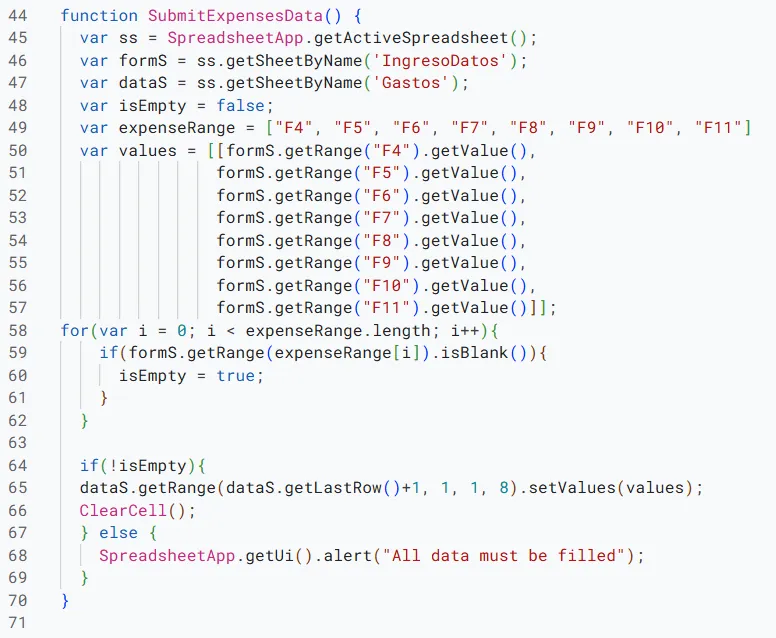
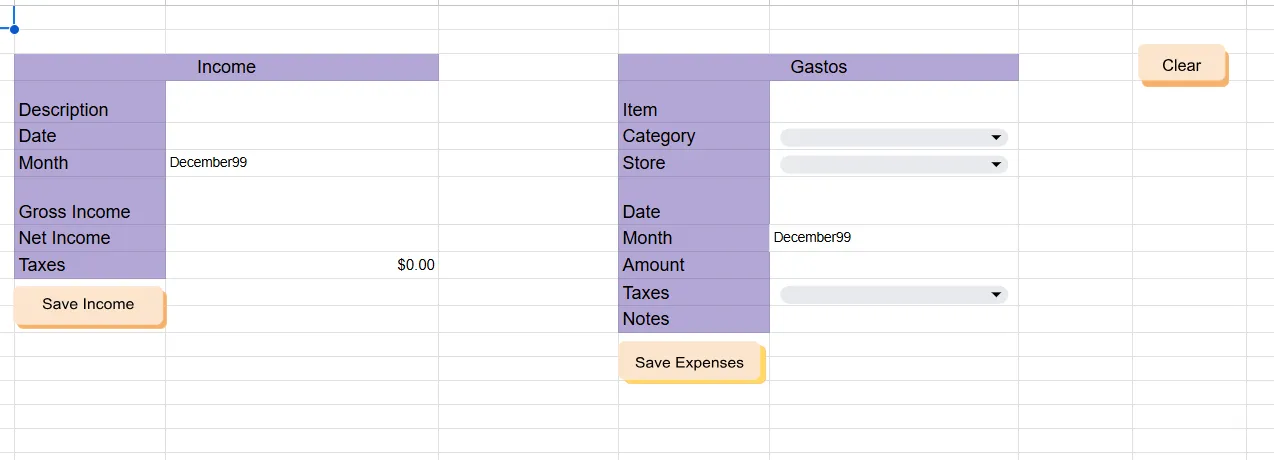
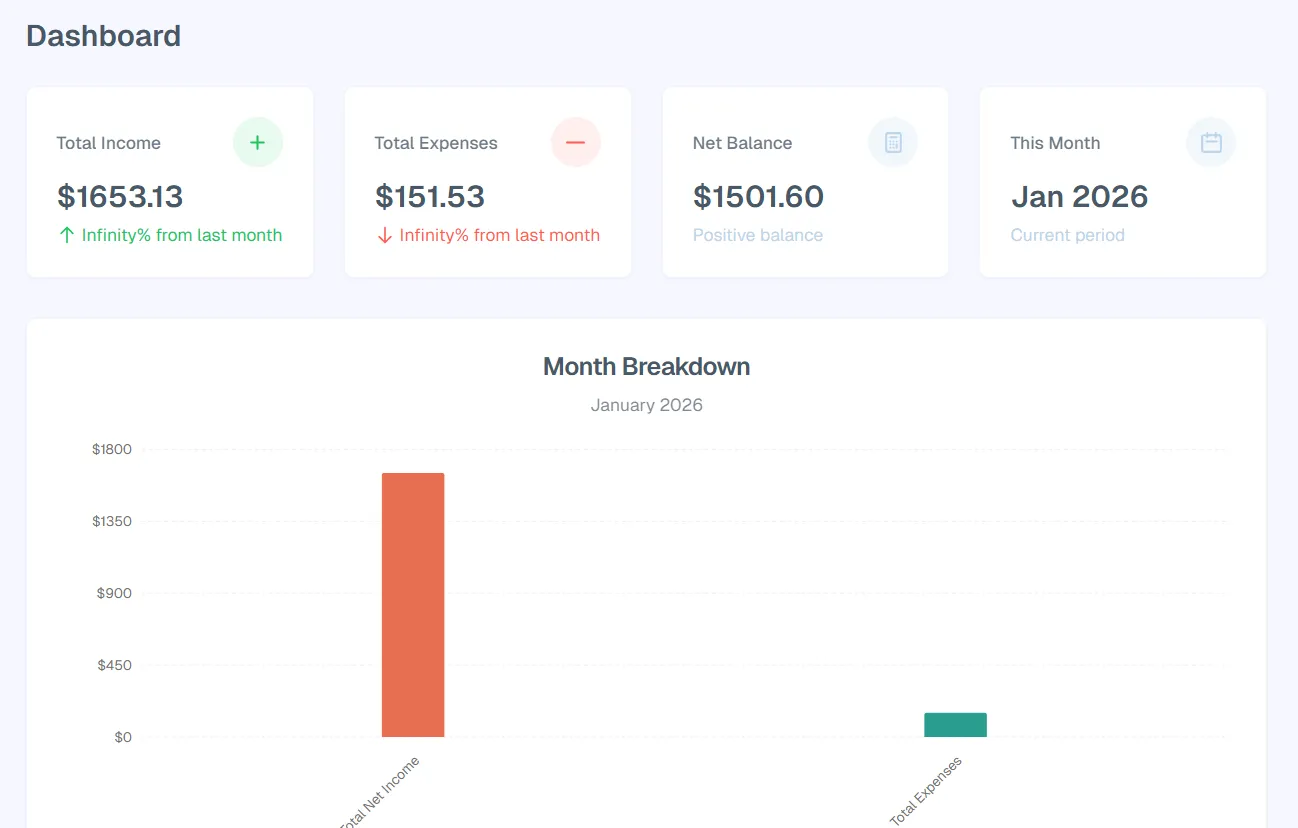
A couple of months into my Full Stack program, I decided to practice what I had been learning and build an app to make this easier for us. I had it all planned out. Dashboards, monthly income and expenses, search functionality, filters. It was going to be awesome. But then again, the form was still too big for us to fill. Detailed information comes with too many input fields.
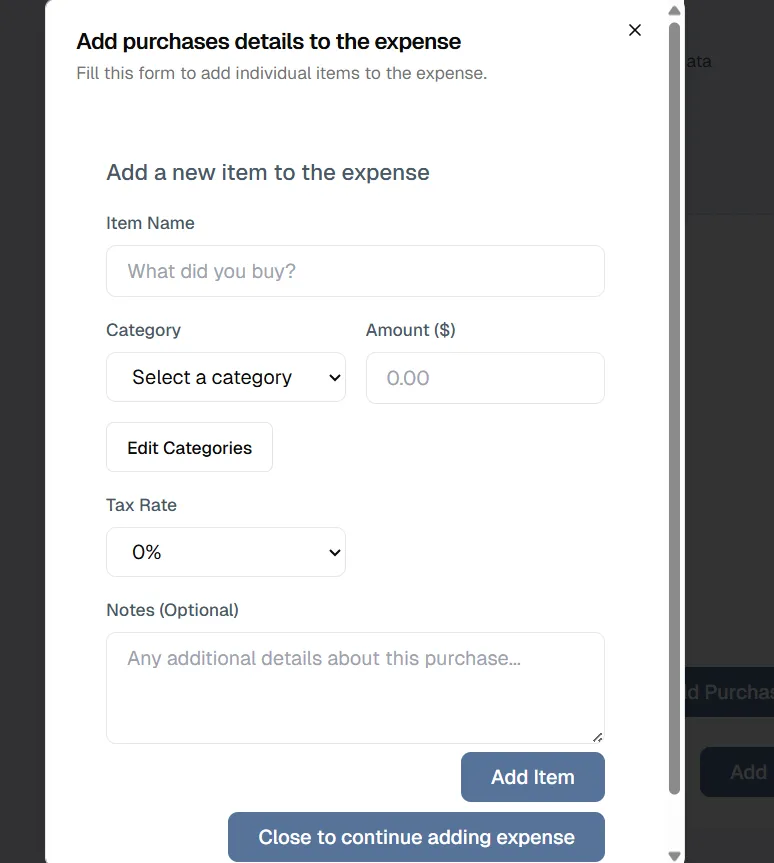
That is where AI came in handy for me, and it was a great opportunity to start working with it. I built an invoice recognition feature where I upload an image of a receipt and it fills the form for me. I still verify everything before submitting, because I never blindly trust it.
The AI Receipt Scanner
This is the part that makes the whole thing worth it. The app uses Google Gemini 2.5 Flash to analyze receipt images and turn them into structured data. You upload a photo, and it figures out what everything is.
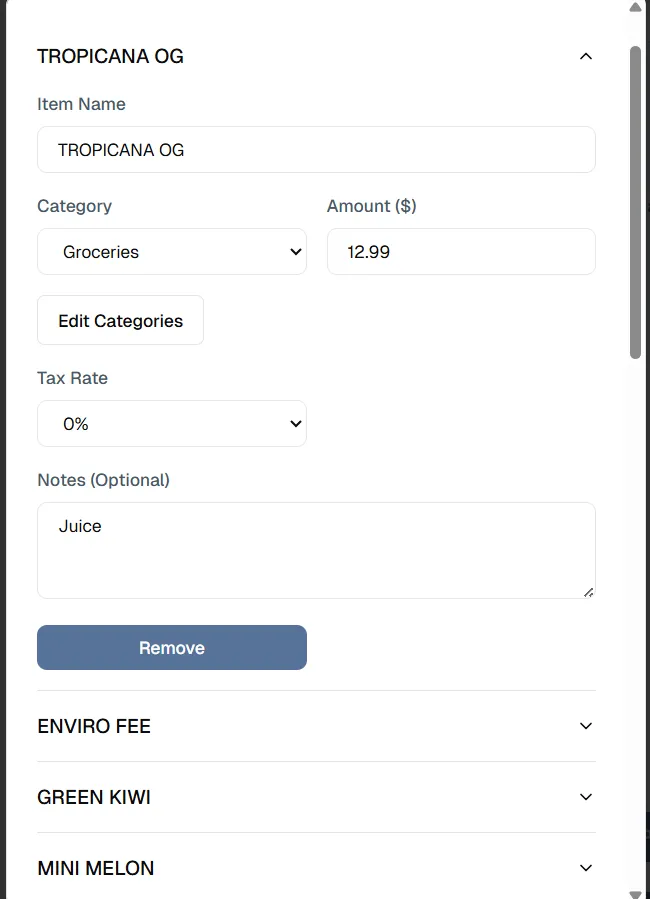
The process is simple. Drag and drop a receipt image, or click to browse for one. The AI processes it and identifies the items, prices, taxes, and store details. It populates the individual line items automatically and assigns categories to them. You review what it extracted, make adjustments if something looks off, and save it. One click and everything goes into the database.
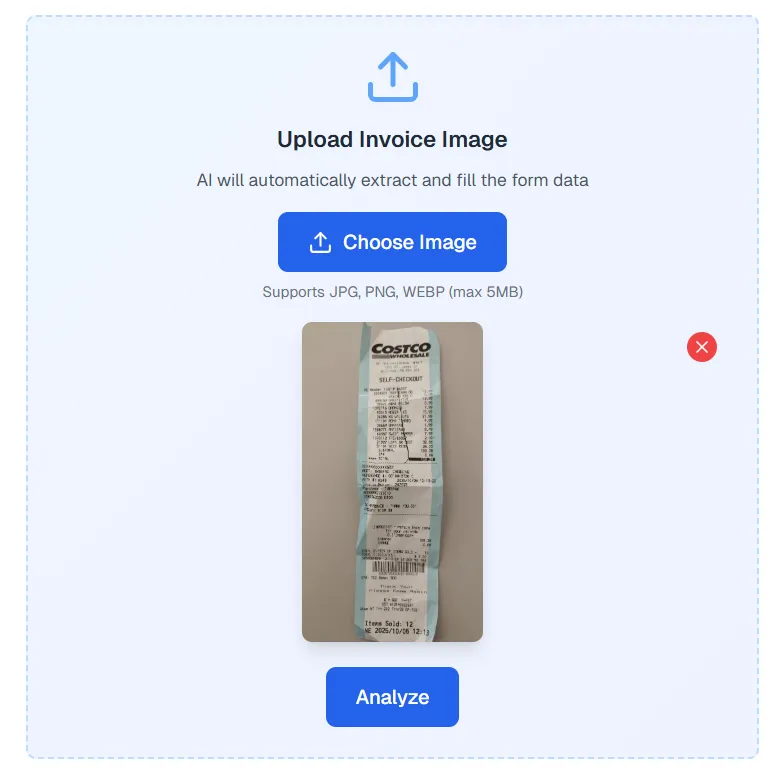
What makes this different from other apps is that it actually understands receipts instead of just reading text. It handles Walmart receipts with their cryptic tax codes, Costco with their multi-line items, and generic store receipts that all look different. It recognizes store-specific tax codes and calculates the proper tax amounts per item. It assigns categories based on what the items are. It detects how you paid, whether it was cash, credit, or debit. And it extracts individual products with their own prices and tax rates, so you get the full breakdown instead of just a total.
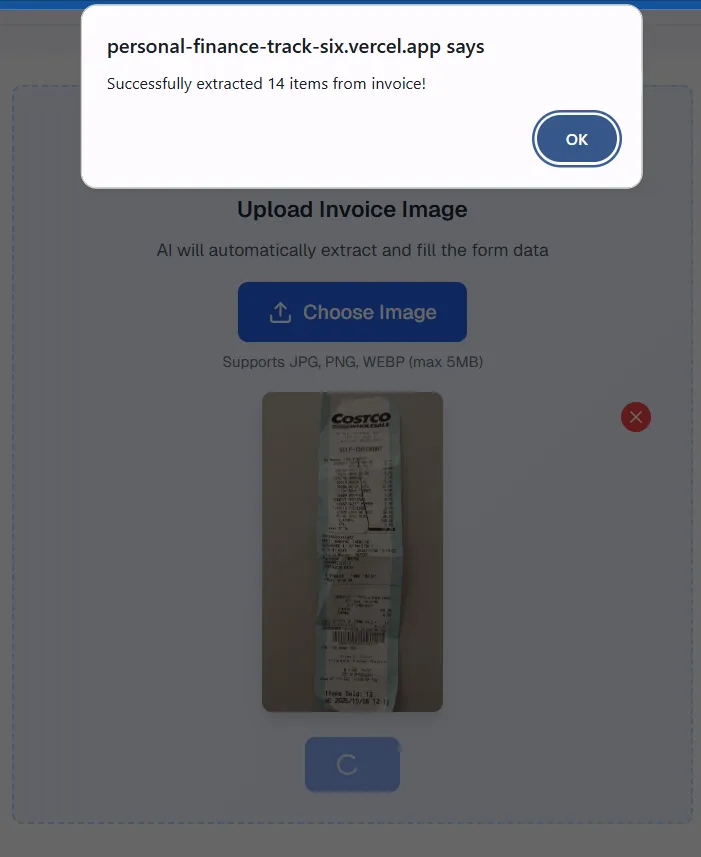
The whole thing is designed to work with real receipts, the messy ones you actually get at stores, not perfect examples that only exist in demos. Well, it does most of the time! I promise!
Technical Implementation
The receipt analysis happens through an API route that handles the image processing and communicates with Google Gemini. The setup is straightforward, but there are some important details that make it reliable.
First, validation. Before anything gets sent to the AI, the code checks three things. Is there actually an image file? Is it the right type? JPEG, PNG, and WebP are allowed, nothing else. And is it under 5MB? If any of these checks fail, the request stops right there with a clear error message. Trusting user input is not an option, so validation comes first.
Once the image passes validation, it gets converted to base64. The file comes in as an ArrayBuffer, gets turned into a Buffer, then into a base64 string. This is what Gemini expects, so that is what it gets.
The actual AI call is where things get specific. The code sends the base64 image to Gemini 2.5 Flash along with detailed instructions. These instructions tell the AI exactly what to extract and how to format it. Store name, payment method, date, individual items, prices, tax percentages, categories, everything. The instructions also include store-specific tax code guides. Walmart uses letters like D and H for 0% tax, Y and Z for 5%, and A, C, E, J for 12%. Costco has its own system with G for 5%, P for 7%, and GP for 12%. For other stores, the AI picks the closest match from 0%, 5%, or 12%.
The response comes back as JSON, usually. Sometimes Gemini wraps it in markdown code blocks, so the code strips those out before parsing. It looks for the ```json markers and removes them, then parses what is left. If something goes wrong during parsing, the error gets caught and returned with details about what failed.
The whole flow is error handling at every step. File validation, size checks, type checks, JSON parsing, API errors, all of it gets caught and handled with messages that actually explain what went wrong. Because when something breaks, and it will eventually, you want to know why instead of just seeing “something went wrong” and having no idea where to start.
Tech Stack and Tools
I built this with Next.js and TypeScript on the frontend, Supabase for the database and authentication, Google Gemini AI for the receipt analysis, Tailwind for styling, Shadcn/ui and Radix UI for components, and Recharts for the visualizations. I already had experience with Next.js and Supabase, so the setup felt natural. Adding AI was new territory for me, but it turned out to be easier than I expected.